Export your org chart as PNG
Download the full org chart as a PNG — resolution options, what is included in the file, and how to use it in slides or documents.
Export gives you the whole chart as an image — not a screenshot of whatever happens to be on screen. That matters when your structure is taller or wider than your monitor.
Putting the PNG into PowerPoint or Google Slides? There is a dedicated PowerPoint walkthrough with the full insert-and-update workflow.
Export steps
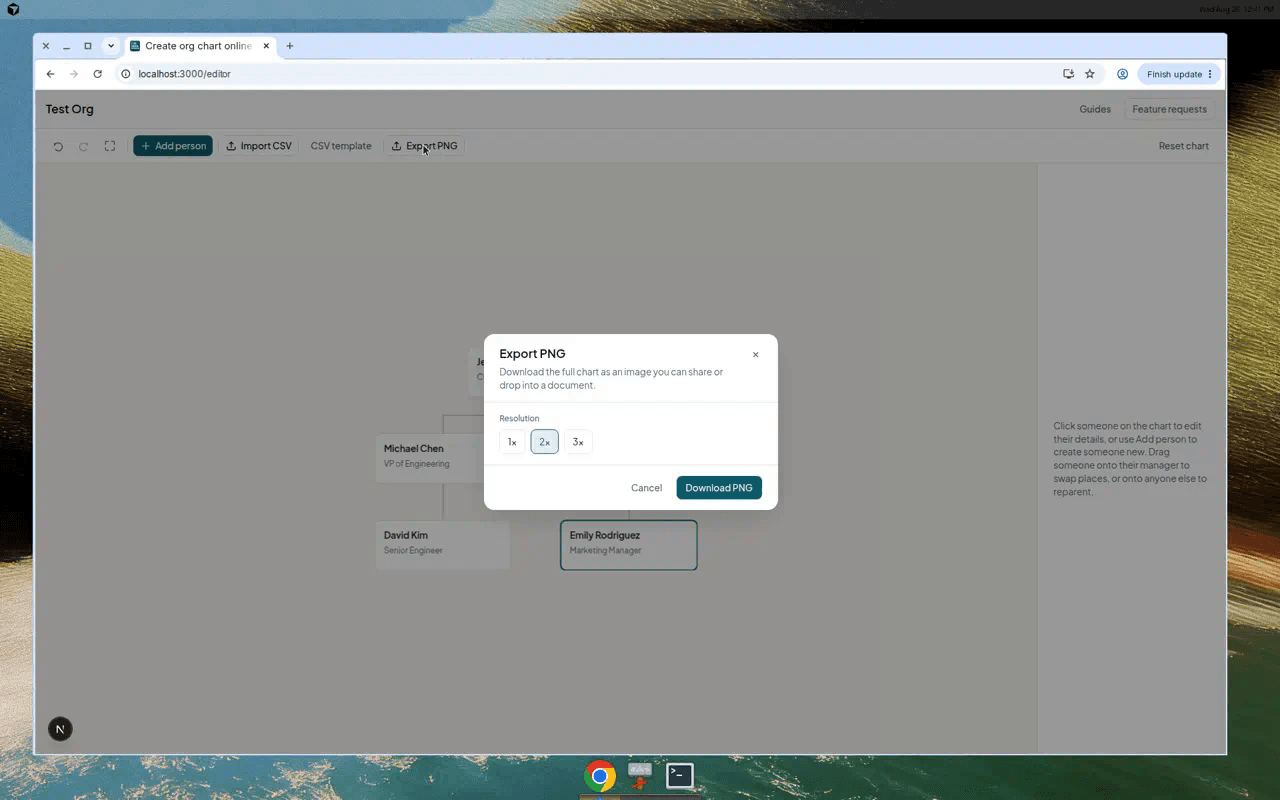
Click Export PNG in the toolbar. Choose 1×, 2×, or 3× — higher values give sharper text when the image is stretched on a projector or printed.
The file name comes from your chart title. The background is clean white with padding around the chart.
What you get
Re-export whenever the structure changes. Updating a PNG and replacing the old image in a deck is often faster than rebuilding SmartArt box by box.
Need SVG or PDF instead? Premium includes vector and print-ready exports. Free PNG export is unchanged.
- Every person currently on the chart, including branches off screen
- Job titles and departments if you filled them in
- Consistent spacing from the layout engine — not manual box nudging